APP STORE · AUTHENTICITY CHECK

Shadowrocket download: App Store authenticity check and purchase guide

Shadowrocket is a one-time paid app on the App Store. The developer is Shadow Launch Technology Limited and the app ID is 932747118. This page covers four things: where to get the genuine app, how to check three details on the store page, what to watch for on iPhone and on iPad, and how to get the app back after switching devices. Get servers and subscriptions from your own provider; the client itself comes with no servers.

  • DeveloperShadow Launch Technology Limited
  • App ID932747118
  • Price$2.99 one-time purchase
  • PlatformUniversal for iPhone and iPad

STORE

Store and account region: first check which App Store you are looking at

The country or region of your Apple ID determines which store you see. Shadowrocket is not listed on the App Store in mainland China, so an account in that region cannot find it.

Shadowrocket is sold only on the App Store; there is no other way to get it. Whether you can find it in the store depends on the country or region your signed-in Apple ID belongs to: the App Store in mainland China does not carry this app, so not finding it with an account in that region is normal — the app has not been renamed and it has not been temporarily removed. Which apps a store shows, what currency they are priced in and whether a purchase can be completed are all determined by the Apple ID region.

You can check your store region in system settings; no third-party tools are needed. Both checking and changing go through Apple's official interface, as follows.

  1. Check your current account region

    Open Settings, tap your name at the top, then go to Media & Purchases → View Account and check the Country/Region row to confirm the region your Apple ID belongs to. This row also determines store content, pricing currency and available payment methods, and it is the first thing to check when you cannot see Shadowrocket.

  2. Changing region: use the official path

    The path is Settings → your name → Media & Purchases → Country/Region → Change Country or Region. Apple will ask for a payment method and billing address valid in that region, and requires that your account balance is fully spent and that you have no active subscriptions. Whether the change goes through is decided by Apple's account rules; this site does not provide accounts and does not promise that a region change will succeed.

  3. Find the app by name or by product page URL

    Type Shadowrocket into the App Store search field, or use the product page URL behind the button on this page. The id932747118 at the end of the URL is the app ID, which confirms you have opened the same app rather than one with a similar name.

Note

Complete purchases and account-related actions in Apple's official interface. This site does not provide accounts and does not handle any part of the payment; the price shown on the store page is the amount you pay.

VERIFY

Spotting the genuine app: three checks on the store page

Apps with similar names are not uncommon in the store. The developer name, the icon and the app ID must all match to confirm it is the same app.

The check itself takes a minute. Open the store page, then look from top to bottom at the developer row, the app icon and the number in the URL, and compare them with the table below. The developer name is the final criterion — app names can be imitated, developer names cannot.

Shadowrocket authenticity checklist
Where to checkWhat it should showNotes
Developer row on the store pageShadow Launch Technology LimitedThe developer name is the final criterion — do not rely on the app name alone
App iconA rocket with a blue-purple gradient outline on a white backgroundMatches the official icon at the top left of this site
Store page URL.../app/shadowrocket/id932747118The number in the URL is the app ID 932747118
Price buttonShows an amount (about $2.99 in the US store)Paid app; payment verification is required when you confirm the purchase

What you see after installing

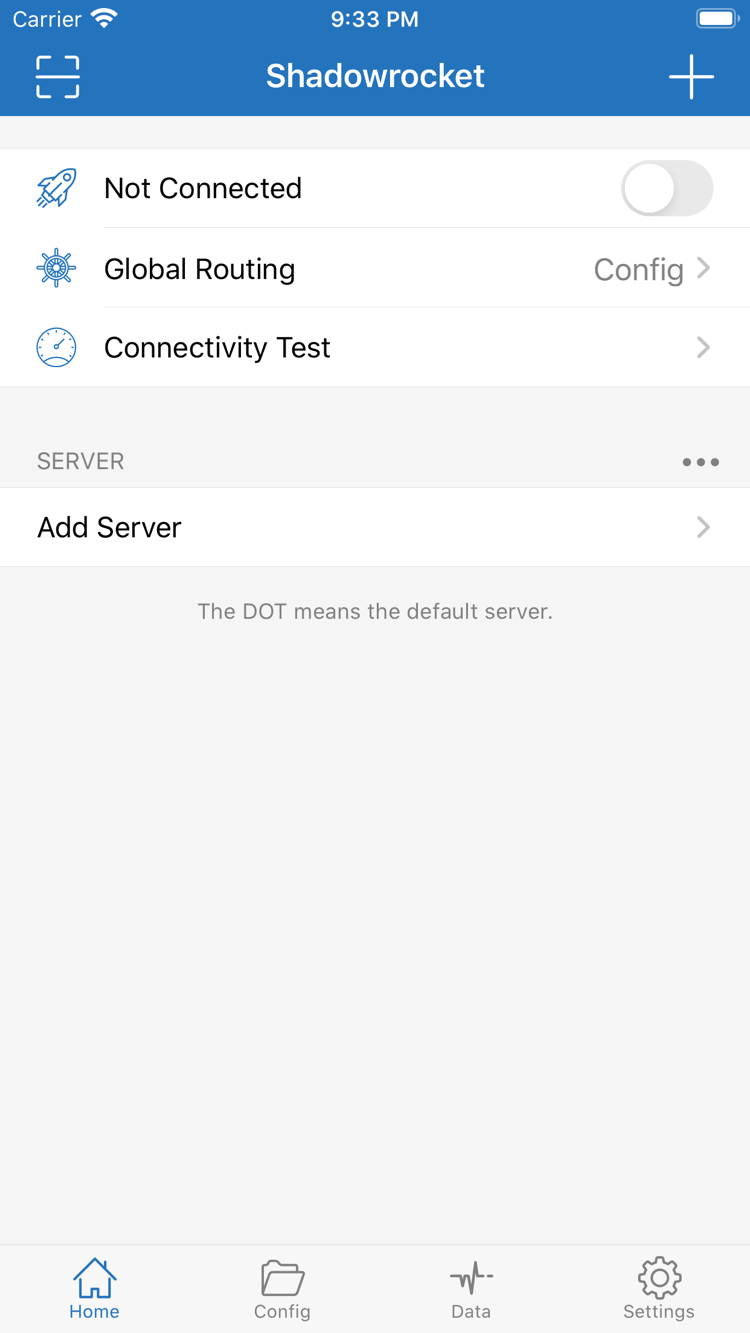
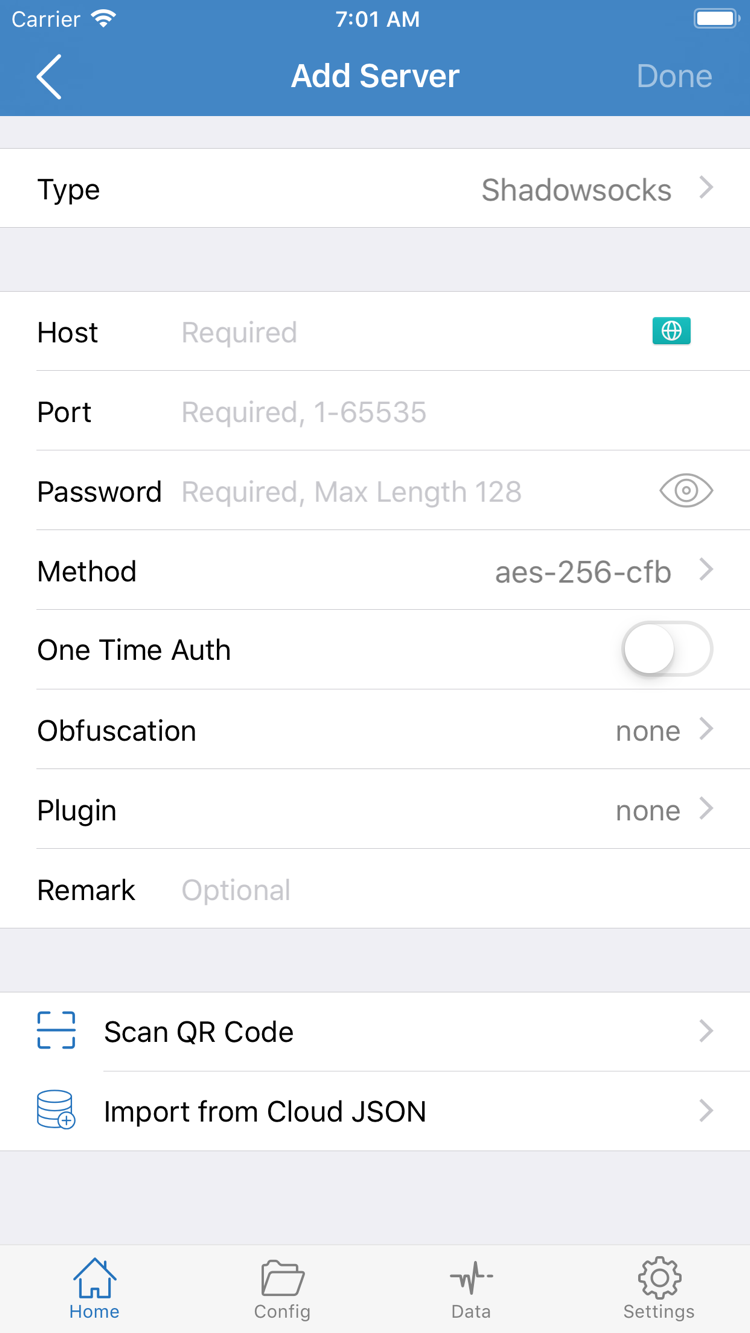
The two images below are the official screenshots the developer uploaded to the App Store; use them to confirm you installed the same app. The first is the Home page: the connection switch and Global Routing at the top, Connectivity Test in the middle, and the SERVER group below with Add Server. The second is the Add Server page: enter the server details field by field under Type / Host / Port / Password / Method, with Scan QR Code and Import from Cloud JSON at the bottom.

Shadowrocket Home page: Not Connected switch, Global Routing and Connectivity Test at the top, SERVER group and Add Server below
Home: Not Connected switch, Global Routing and Connectivity Test, with the SERVER group and Add Server below
Shadowrocket Add Server page: Type, Host, Port, Password and Method fields, with Scan QR Code and Import from Cloud JSON at the bottom
Add Server: Type / Host / Port / Password / Method fields, with Scan QR Code and Import from Cloud JSON at the bottom
Spotting look-alikes

If a search result has a similar name but the developer is not Shadow Launch Technology Limited, the icon is not a rocket with a blue-purple outline on a white background, or the number in the URL is not 932747118, it is not the same app. The recommended order is: check the developer name first, then the app ID in the URL, and finally the icon and the price format. If any one of the three does not match, do not buy.

DEVICES

iPhone and iPad: one purchase, two kinds of device

Buy once with the same Apple ID and you can install the same app on both iPhone and iPad; system requirements are as stated on the App Store page.

iPhone

iPhone is the most common device for installation. Once your store region is confirmed, tap the price button on the store page, confirm payment with Face ID, Touch ID or your password, and wait for the download to finish — the app icon then appears on the Home Screen. On first launch, iOS shows a system-level authorization prompt asking you to add a VPN configuration for Shadowrocket. This is the standard requirement for apps that use the Network Extension, and the client can only establish a local tunnel after you allow it. Once authorized, the configuration appears under Settings → General → VPN & Device Management.

  • System requirementsAs stated on the App Store page (the current store page lists iOS 13.0 or later)
  • First launchA system prompt to add a VPN configuration appears; allow and verify it
  • Purchase recordApp Store → profile picture in the top-right corner → Purchased

iPad

iPad and iPhone share the same purchase record: as long as the Apple ID is the same, tap the cloud icon in the iPad's App Store to download — no second payment for iPad. The interface on iPadOS takes advantage of the wider screen, so the Home page, the server list and the settings pages are laid out more spaciously than on iPhone, but the setting names are exactly the same: Home / Config / Global Routing / On Demand / Settings / Data. The steps are the same too, so just follow the guide.

  • System requirementsAs stated on the App Store page
  • Purchase recordShared with iPhone under the same Apple ID; no second payment
  • Interface differencesRoomier layout; setting names match iPhone

Mac, Apple TV and Apple Vision

The compatibility section of the same App Store listing also lists Mac, Apple TV and Apple Vision. They share the same product page as iPhone and iPad, and installation is likewise done only through the App Store. Whether it counts as a universal purchase (buy once and install on these devices) and the minimum system version for each device are as stated on the App Store page; this site makes no further promises.

The steps on these devices match iPhone: open the app, enter server details under Add Server or import a subscription in Config, choose the Global Routing setting, then turn on the connection switch. Subscription and server details likewise come from your own provider.

RESTORE

New device and restore: re-downloading costs nothing

Purchase records follow the Apple ID, not the device. After switching to a new phone, reinstalling the system or deleting the app by mistake, you can get the app back with the same account.

  1. Sign in on the new device with the Apple ID used for the purchase

    Purchase records are tied to the account, so the first step is to confirm the account matches. If the new device is signed in with a different Apple ID, the record will not appear in Purchased and the system will treat the app as not purchased.

  2. Open the App Store, tap the profile picture in the top-right corner and open Purchased

    Search for Shadowrocket in the purchased list. The list is generated from the account's purchase history and has nothing to do with the device model; if it is long, use the search field to filter it.

  3. Tap the cloud icon to download it again

    Once you find it, tap the cloud download icon; the system authorizes the download using this account's purchase record and you are not charged again. The first launch after downloading works the same as the first installation — the VPN configuration prompt still appears.

  4. Import your own subscription or server details again after installing

    The server list and rule configuration inside the app are stored on the device and do not sync automatically with your account. Get the subscription link or server parameters from your provider, enter them field by field under Add Server on the Home page, or import the subscription in Config. If your provider gives you a subscription link, you can keep it in sync with the update-on-open option after importing it once.

Deleting the app on the same device does not affect the purchase record, and re-downloading still costs nothing. Whether Family Sharing is supported is as stated on the App Store page, which spells out the applicable conditions; this site makes no further promises and does not provide accounts. If the record never appears in Purchased, check the account region and the account itself first, then follow Apple's official support documentation.

PRICE

Price and one-time purchase: what a single payment means

Priced at about $2.99 in the US store; it is a one-time paid app, and other storefronts show the amount in local currency.

One-time purchase means: you pay the App Store once, the app is then registered to your Apple ID, and future re-downloads and version updates cost nothing more in the App Store. Payment goes through Apple's billing system and can be completed with Apple ID balance, a linked payment method or a gift card. This site does not handle any part of the payment and offers no resale or third-party purchase channels.

Prices in each storefront are displayed by Apple in the local currency and with local tax rates, so they do not exactly match the US amount; the amount actually charged is the one shown on the App Store page. App updates are delivered through the App Store, and update history and system requirements can be found in the version information on the store page.

US price $2.99 Pricing model One-time purchase Updates Delivered through the App Store
Buying the client is not the same as buying a service plan

Buying Shadowrocket only gets you a client; it provides no servers of its own. You still need server or subscription details from your own provider and must enter them under Add Server or Config before a connection can be established. This site does not provide or sell any servers, subscriptions or related services, and does not recommend any provider.

FAQ

Download and purchase FAQ

Six questions about the store, purchases and devices; a fuller Q&A is on the FAQ page.

Why can't I find Shadowrocket in the App Store?

The most common reason is that the country or region of your Apple ID does not match the regions where the app is listed. Shadowrocket is not on the App Store in mainland China, so an account in that region not finding it is normal. Check your account region using the #store section on this page first, then confirm that your search terms are spelled correctly. Store regions are governed by Apple's account rules; this site does not provide accounts and does not promise that a region change will succeed.

Do I need to buy it again after switching to a new iPhone or reinstalling the system?

No. Sign in with the same Apple ID you used for the purchase, tap the profile picture in the top-right corner of the App Store to open Purchased, find Shadowrocket and tap the cloud icon to download it again — you will not be charged twice. Purchase records follow the Apple ID, not the device. If it is not in the list, first check that the account you are signed in with is the one you bought it with.

Can I install the same app on an iPad?

Yes. iPhone and iPad share the same purchase record: open the App Store on the iPad with the same Apple ID, search for the app or tap the cloud icon in Purchased, and download it — no separate payment for iPad. The layout on iPadOS is roomier, and the setting names match iPhone.

Can I install it on a Mac or Apple TV?

The compatibility section of the same App Store listing lists Mac, Apple TV and Apple Vision. Whether it counts as a universal purchase and the minimum system version for each device are as stated on the App Store page; installation is likewise done only through the App Store. This site only describes what the store page states and makes no further promises.

The interface is in English after opening — will that affect how I use it?

It does not affect functionality. The interface terms are English in the app itself, and this guide uses the same English wording: Home / Config / Global Routing / On Demand / Add Server / Subscribe / Settings / Data and so on. Follow the guide alongside the app; what the app actually shows is authoritative.

Can I connect right after buying it?

Not yet. The client needs server or subscription details from you: get a subscription link or server parameters from your provider, enter them field by field under Add Server on the Home page, or import a subscription in Config, then return to the Home page and turn on the switch. Buying the client and buying a service plan are two separate things — owning the app does not mean you have a server.